
How to Edit an HTML File (Without Breaking It)
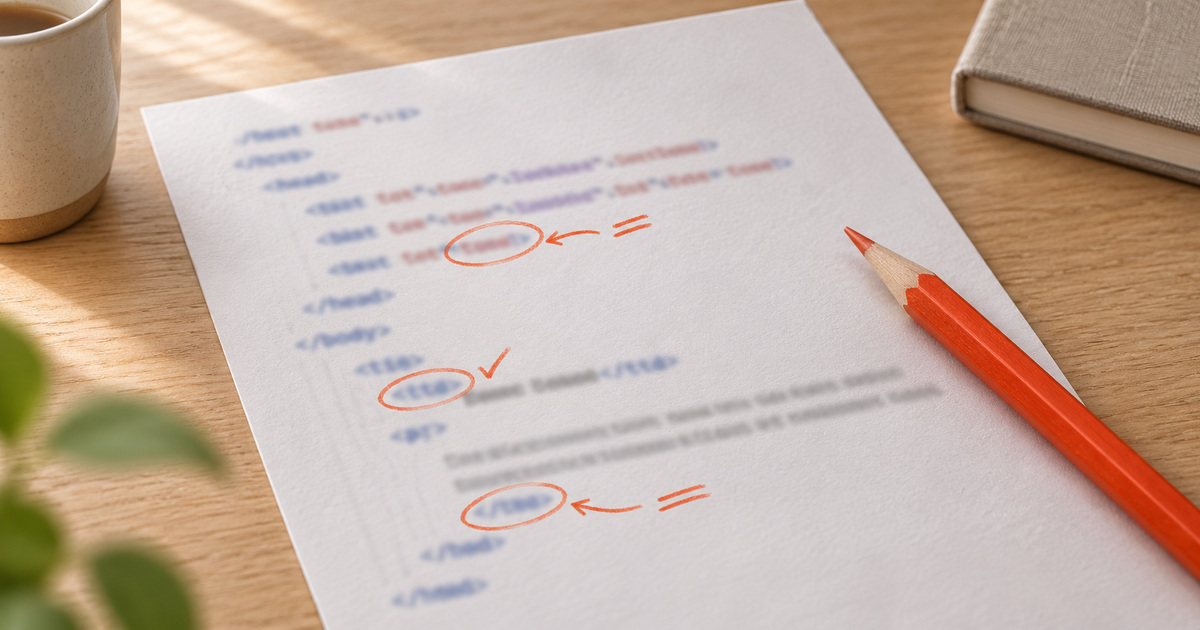
To edit an HTML file, open it in a text or code editor, change the content between the tags, save, and reload the page in your browser to check. For quick changes, an online editor with live preview, such as HTMLpad, shows the result as you type. Change text freely, but leave the angle-bracket tags intact.
Most people who need to edit an HTML file are not web developers. They want to fix a typo in a page an AI made, change a price, swap a link or replace an image. That is all very doable without learning HTML properly, as long as you know what to touch and what to leave alone.
Choose where to edit
A plain text editor. Notepad on Windows, TextEdit on a Mac. Already installed, fine for small changes. On a Mac, set TextEdit to show HTML files as code, or it will show the page instead.
A code editor. Visual Studio Code is free and the most common choice. It colours the different parts of the code, closes tags for you and points out some mistakes. Worth installing if you edit HTML more than once.
An online editor with live preview. On HTMLpad, you paste the HTML on one side and see the page on the other, updating as you type. There is nothing to install, and when you are done you can save it as a link or download the edited file.
Your browser's developer tools. Right-click any part of a page and choose Inspect. You can change text and styles live to try ideas, but the changes disappear when you reload. Useful for experimenting, not for saving. Chrome's DevTools documentation covers the shortcuts.
Know what to touch
HTML wraps content in tags. Everything between an opening tag and its closing tag is content; the tags themselves are instructions.
<h1>Spring offer</h1>
<p>Our plan costs <strong>$19</strong> a month.</p>
<a href="https://example.com/signup">Sign up</a>- To change the heading, edit
Spring offer, not<h1>. - To change the price, edit
$19, keeping<strong>and</strong>around it. - To change where the link goes, edit the address inside
href="...", keeping the quotes. To change the words people click, editSign up.
The golden rule: change what sits between the angle brackets, and leave the brackets, tag names and quotes alone until you are comfortable with them.
Common edits, step by step
Change text. Use your editor's Find function to locate the words, change them, save.
Change a link. Find the <a tag around the link text and replace the address inside href="...". Keep https:// at the start for outside links.
Change an image. Find the <img tag and change the address inside src="...". If you use your own image, it must be online at a public address, or in the right folder next to the HTML. Update the alt="..." text too; it describes the image to screen readers and search engines.
Change a colour. Look in the <style> section near the top for colour codes such as #2848c8. Change the code, save and reload. A colour picker in any design tool gives you the code you need.
Remove a section. Delete everything from the opening tag of that section to its matching closing tag, for example from <section> to </section>. Removing only one of the pair is the classic way to break a layout.
Check your changes
Save the file and reload it in the browser after each change, not after twenty. If something breaks, you will know which edit caused it. In a live-preview editor, you see the effect immediately.
If the page suddenly looks wrong, the usual suspects are:
- A missing closing tag, such as
</div>, after you deleted something. - A quote you removed by accident, so an
hreforclassruns into the next attribute. - A typo inside a tag name.
Undo (Ctrl+Z or Cmd+Z) is your friend. Keep a copy of the original file before you start.
Editing a page that is already online
If the page is published, edit the source and publish again. On HTMLpad, open the pad's edit view, make the change and save; the same link shows the new version. On other hosts, edit the file on your computer and upload it again.
If you find yourself editing the same page every week, adding sections and pages as you go, that is a sign the page is turning into a website. I wrote about when a single HTML page isn't enough.
Frequently asked questions
Can I edit an HTML file in Word?
You can open it, but Word tends to add its own code when saving, which bloats and sometimes breaks the page. Use a text editor, a code editor or an online editor instead.
How do I edit an HTML file on my phone?
Use a code editor app, or paste the HTML into an online editor such as HTMLpad in your phone's browser. Small screens make it fiddly, so keep phone edits to quick fixes.
How do I edit an HTML file and see changes live?
Use an editor with live preview. On HTMLpad, the page on the right updates as you type in the code on the left. Code editors such as Visual Studio Code also have preview extensions.
Will editing an HTML file break it?
Not if you change only the content between tags and keep the tags, brackets and quotes intact. Save a copy of the original first, and reload after each change so any mistake is easy to find.